Connect Claude to PosteAhora, step by step
Nine steps, about five minutes. The screenshots are from the Claude desktop app in English; the web app shares the same Customize → Connectors flow, so the menu names match there too.
Before you start
You need a PosteAhora account with at least one network connected, and a Claude account. Claude Code has its own one-line setup — see the FAQ.
The connector URL is the same for every client: https://mcp.posteahora.com/mcp. It signs you in with your PosteAhora account — no API key to paste. Networks are connected in Connections first; the assistant can only reach what is connected there.
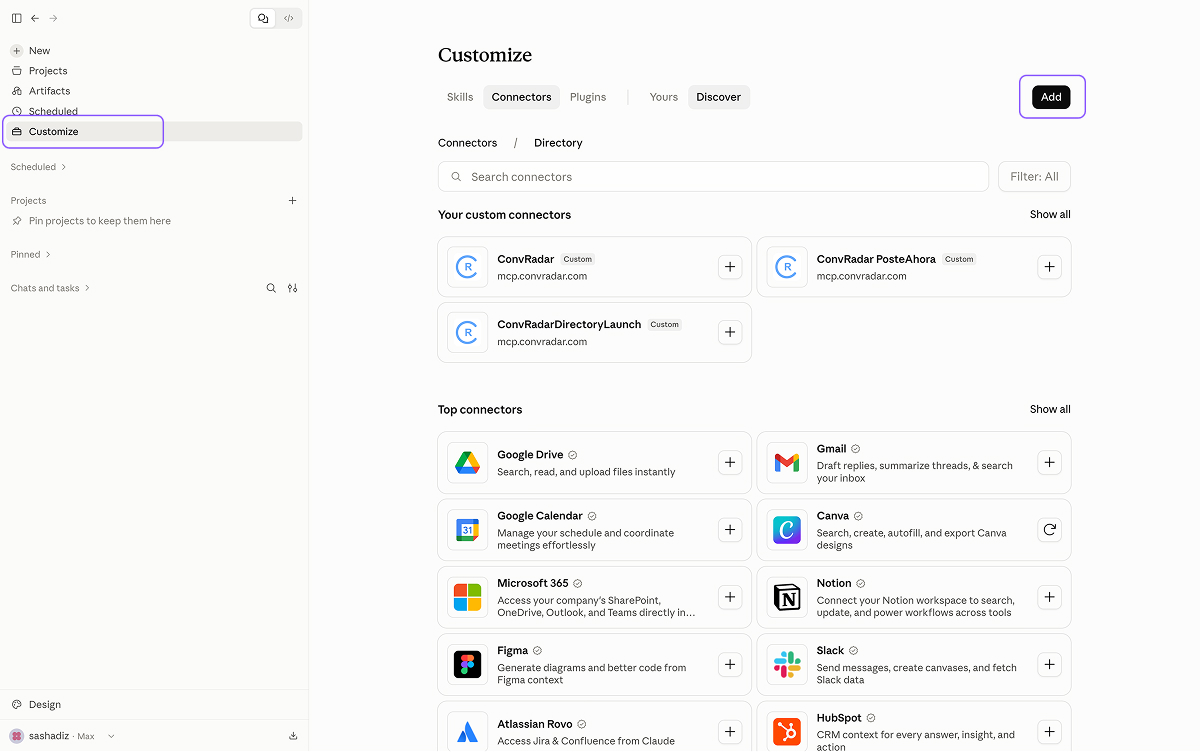
1. Open Connectors and click Add
In Claude open Customize in the left sidebar, choose the Connectors tab and click Add at the top right. This is where custom MCP connectors live.
On a Team or Enterprise plan an Owner adds the connector under Organization settings → Connectors instead; everyone else picks it up from step 4.
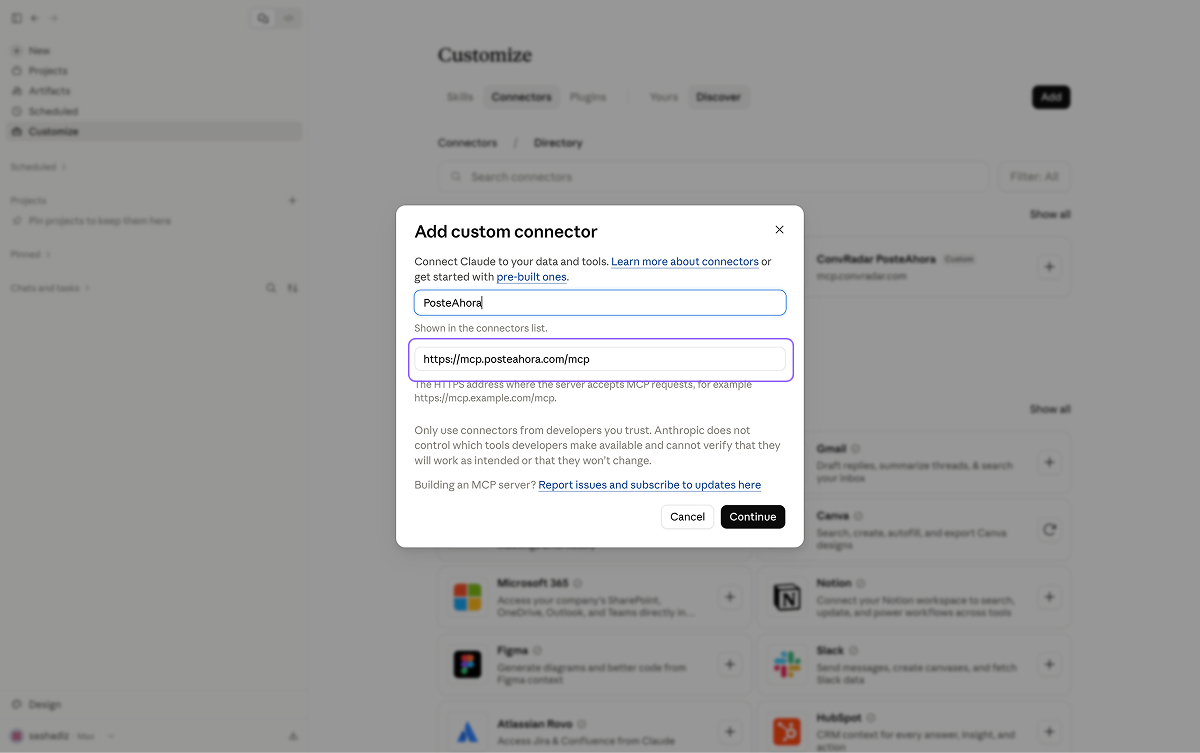
2. Name it and paste the URL
In Add custom connector type PosteAhora as the name and paste the connector URL, then click Continue.
https://mcp.posteahora.com/mcp
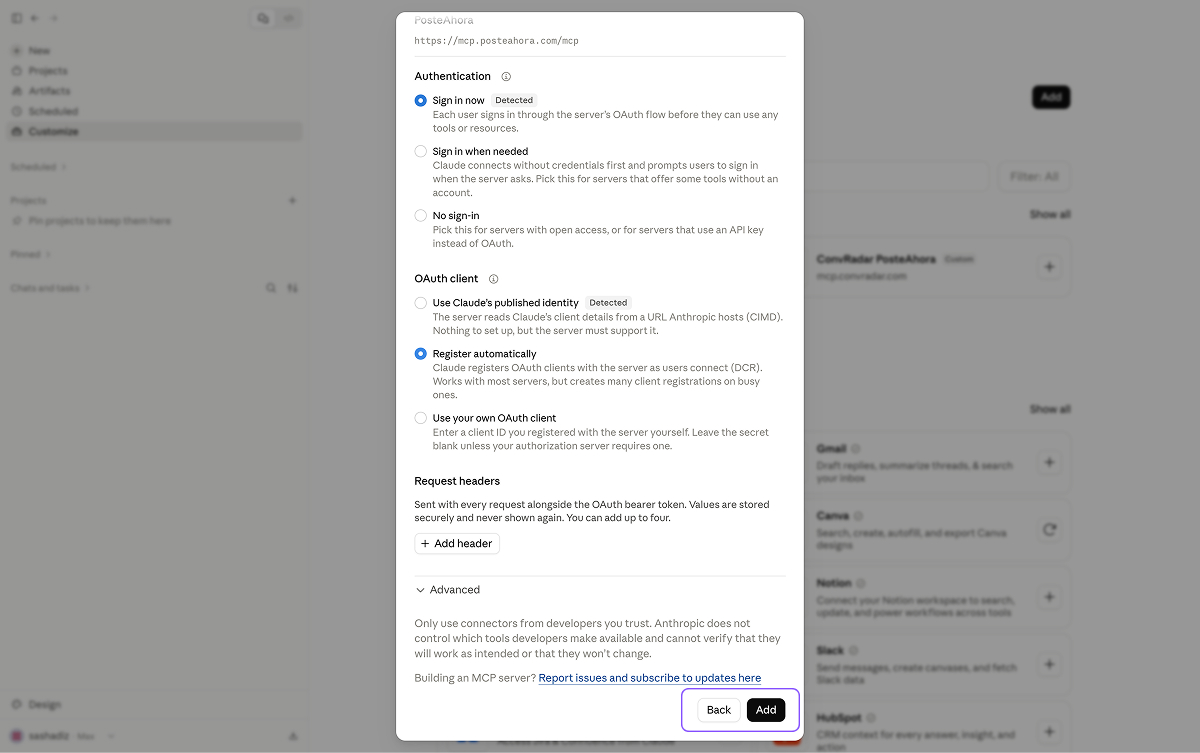
3. Keep the detected sign-in and click Add
Claude reads the server and pre-selects Sign in now under Authentication. Leave the OAuth client on its default — Register automatically and Claude's published identity both work with our server — add no request headers, and click Add.
Nothing goes under Advanced. Claude registers itself with our server; there is no client ID or secret to paste. A Free account can hold one custom connector.
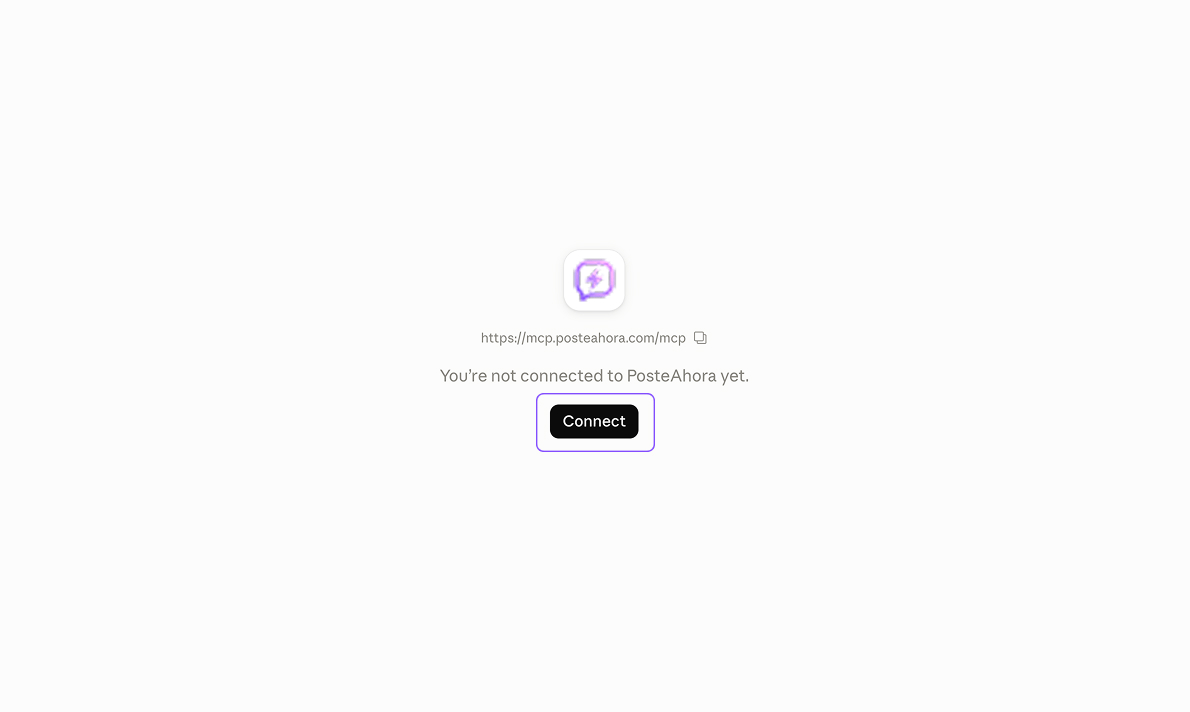
4. Click Connect
The new connector opens with "You're not connected to PosteAhora yet." Click Connect — a PosteAhora page opens in your browser.
5. Confirm the hand-off (desktop app only)
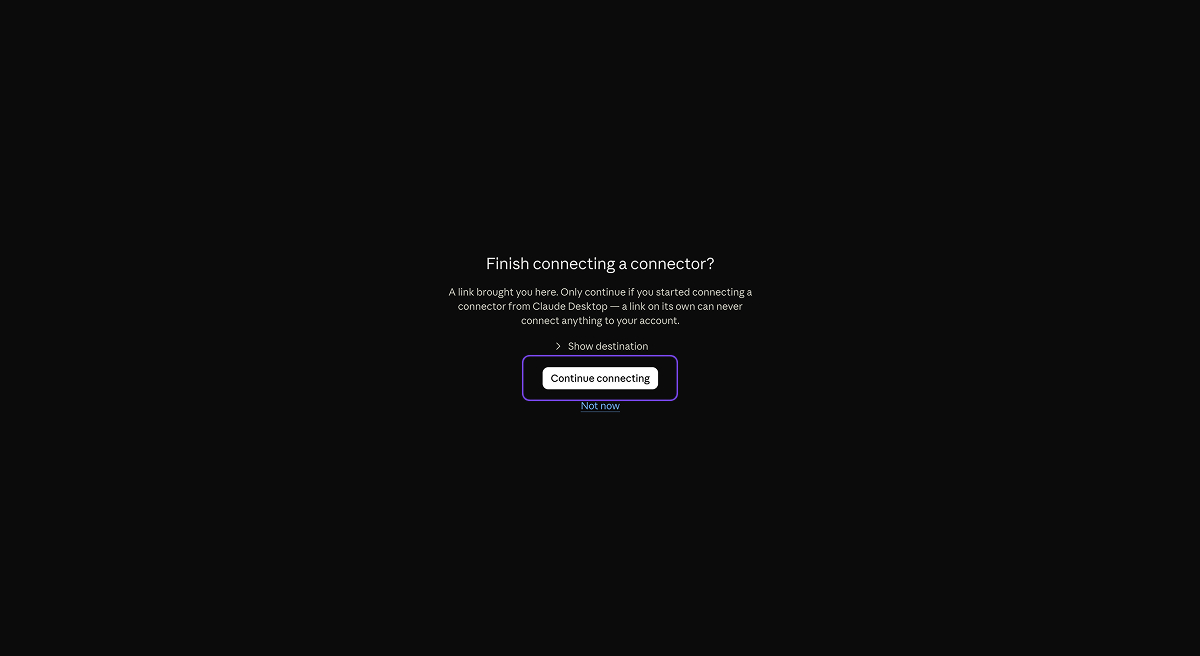
From the desktop app the browser first asks "Finish connecting a connector?". Click Continue connecting — it only appears because you started from the app; on the web this step is skipped.
Claude puts this screen there on purpose: a link on its own can never connect anything to your account.
6. Pick a workspace and approve
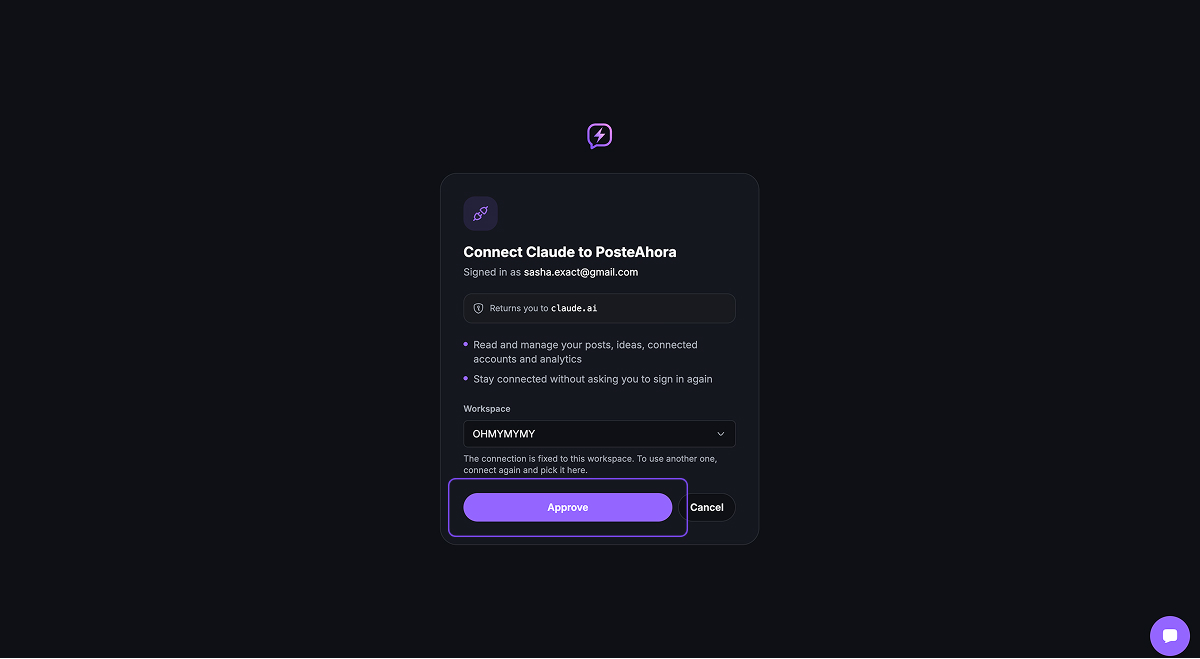
The page shows who you are signed in as and what Claude will be able to do — read and manage your posts, ideas, connected accounts and analytics. Choose the workspace it should work in and click Approve; you land back in Claude.
The connection is fixed to that workspace. To work in another one, connect again and pick it there.
7. Set tool permissions
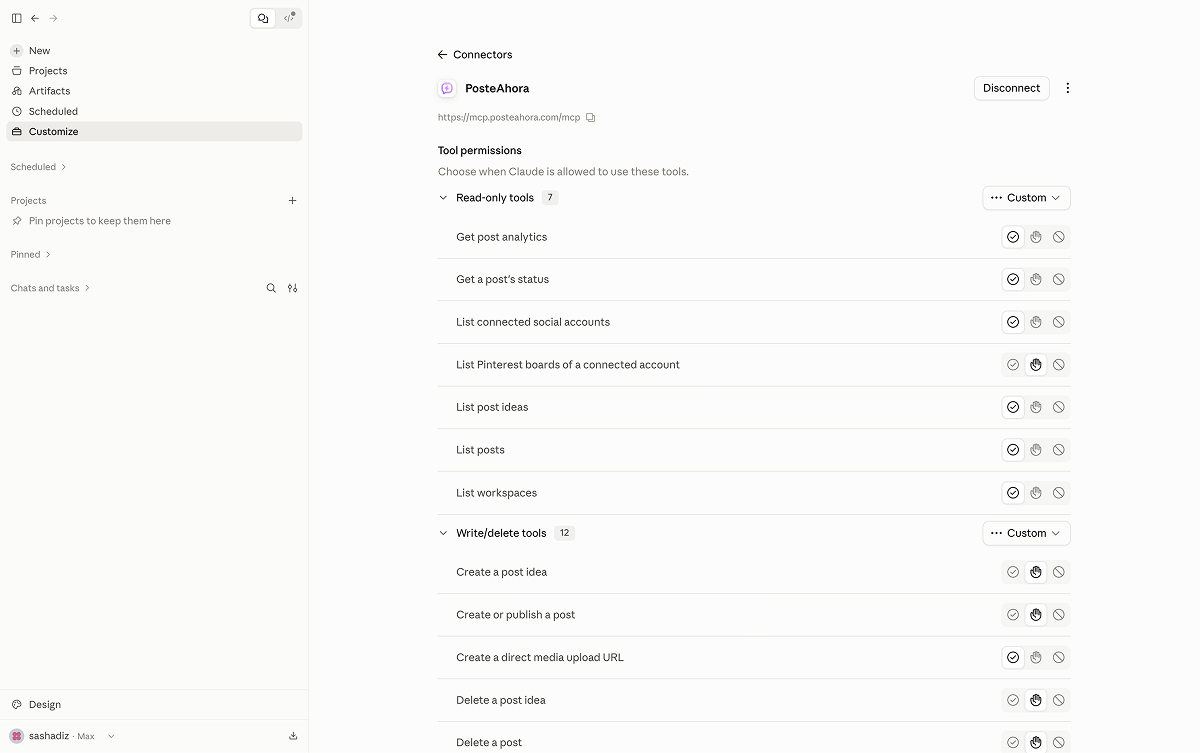
Back on the connector page Claude lists every tool it found — seven read-only, twelve that write or delete — and lets you pick, per tool, whether it may run always, must ask each time, or never. The default is a good one: reads run, writes ask.
This page is also where Disconnect lives, and where you come back to tighten a tool later.
8. Optional: teach it the PosteAhora skill
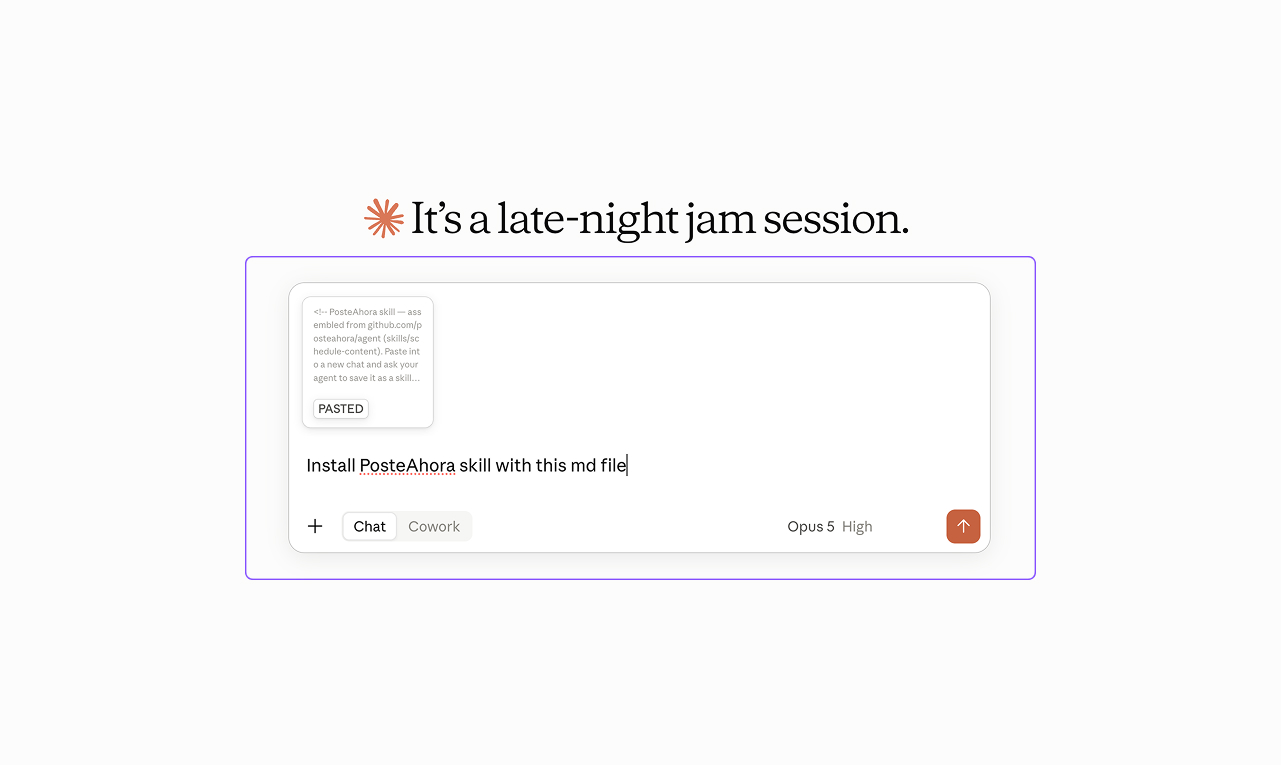
Open AI & Integrations → Claude in PosteAhora, copy the skill, paste it into a new chat and ask "Install PosteAhora skill with this md file". The skill carries each network's caption limits, media specs and publishing gotchas, so posts land right the first time.
Install PosteAhora skill with this md file
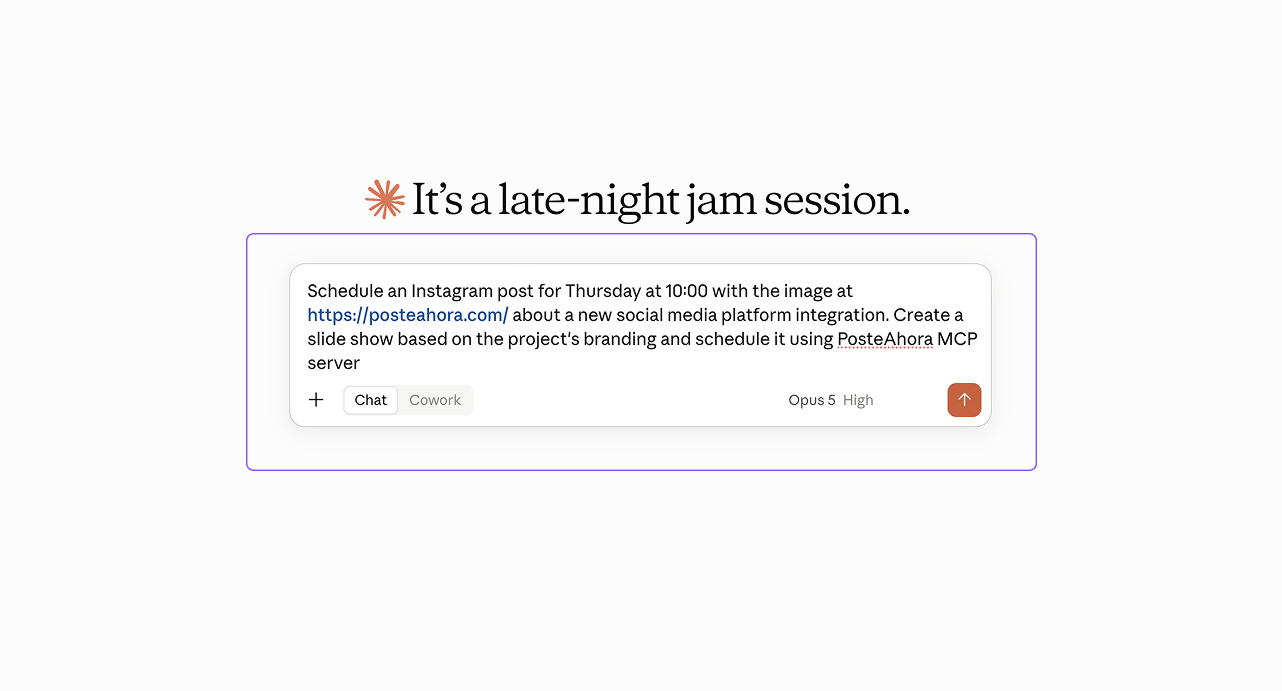
9. Ask for a post
Describe the post and when it should go out. Claude picks schedule_post, asks before running it if the tool is set to ask, and the post is queued the moment you allow it — you will find it in Publish under that day, editable until it goes out.
Schedule an Instagram post for Thursday at 10:00 with the image at https://… about … and schedule it using the PosteAhora MCP server.
What we checked
Last run on September 15, 2026. On 15 September 2026 we added the connector by exactly these steps in the Claude desktop app, signed in, and scheduled a real post from the chat that landed in the PosteAhora calendar. The screenshots are from that session. Claude's menus and plan rules are Anthropic's and move; when a step no longer matches, the vendor documentation linked at the bottom of the page is the one to trust, and tell us — we re-run the guide.
FAQ
Can Claude post to Instagram on its own?
No. Claude has no publishing rights on any social network; it needs a connector that does, and PosteAhora is that connector. You connect Instagram (a professional account — Business or Creator, which is what Instagram's API requires), X, LinkedIn and the others in PosteAhora once, and Claude publishes through those connections. It never sees the network passwords, only the tools we expose.
Which Claude plan do I need?
Anthropic's help centre lists custom connectors for Free, Pro, Max, Team and Enterprise, with one limit worth knowing: a Free account can hold one custom connector. On Team and Enterprise only an Owner adds it, under Organization settings → Connectors, and each member then connects and signs in on their own. Plans are Anthropic's to change, so the linked article is the reference.
Does it work in the desktop app and in Claude Code?
Yes. Web and desktop share the same connectors, so add it once at claude.ai and it is there in the app. Claude Code takes the same URL from the terminal — `claude mcp add --transport http posteahora` plus the connector URL, then /mcp to sign in — or runs our local server with an API key if you would rather not sign in through a browser.
Will Claude publish something I did not approve?
Only if you ask it to publish now. Ask it to schedule and the post waits in your PosteAhora queue, where you can edit or delete it before it goes out. Claude also asks before it runs a tool — "Allow once" or "Allow always" — so nothing changes outside the chat without a click from you.
How do I add an image to a post from Claude?
Give it a public URL, or upload the file in PosteAhora first and refer to it. The connector runs on our servers, so it cannot read a file from your computer, and a path from your machine is rejected with a message that says what to send instead. Claude Code, running locally, can send a file inline.
Can my team use it without sharing my accounts?
Yes. On Team and Enterprise an Owner adds the connector once, and every member signs in to PosteAhora individually, so each person reaches only the workspaces they belong to. On any plan, a workspace per client keeps a client's post off your own calendar.
What does it cost?
Claude is billed by Anthropic. On our side there is a 7-day trial for $0 with a card on file, then a flat monthly or yearly price by plan, with the connector included. Every plan has unlimited posts; what varies is how many social accounts you can connect.
Marketing version of this guide, with what the integration is for: /mcp/claude. Every client that speaks MCP is listed on /mcp.