Connect Telegram
Create your own bot, make it an admin of your channel or group, and connect it to PosteAhora.
Before you start
PosteAhora posts to Telegram through a bot that belongs to you. You need a Telegram account and a channel or group where you can add administrators. You will end up with two things to paste: the bot’s token and the channel’s @username.
The Telegram screens below are from Telegram for Mac, taken on November 25, 2026. Menus on a phone can look a little different.
1. Open BotFather
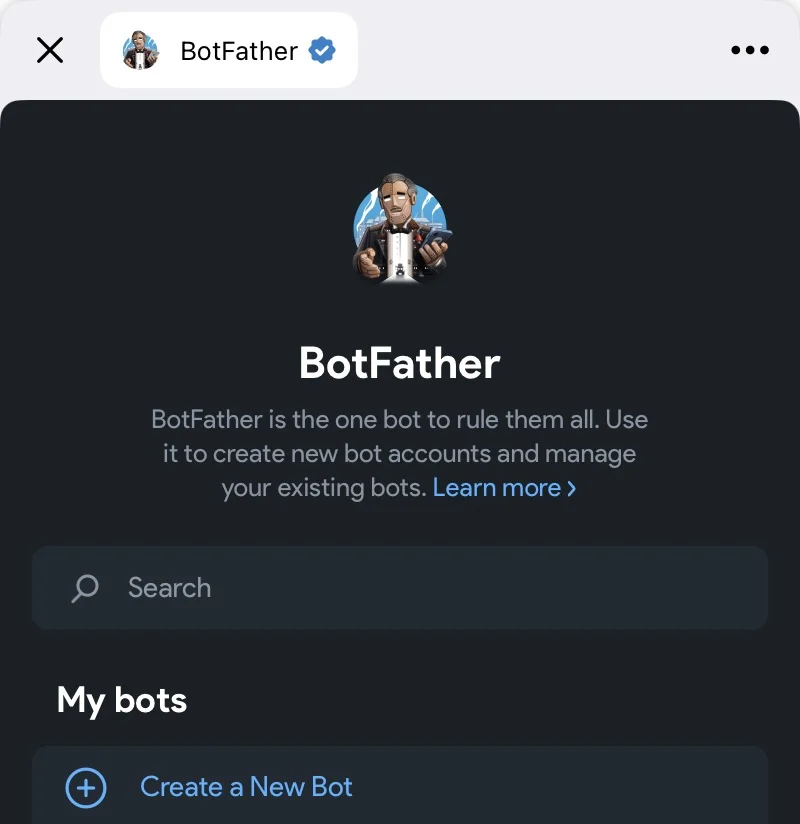
BotFather is Telegram’s own bot for making bots. Open t.me/BotFather, check for the blue tick next to the name, and press Open to the left of the message field.

Choose Create a New Bot.
2. Create the bot
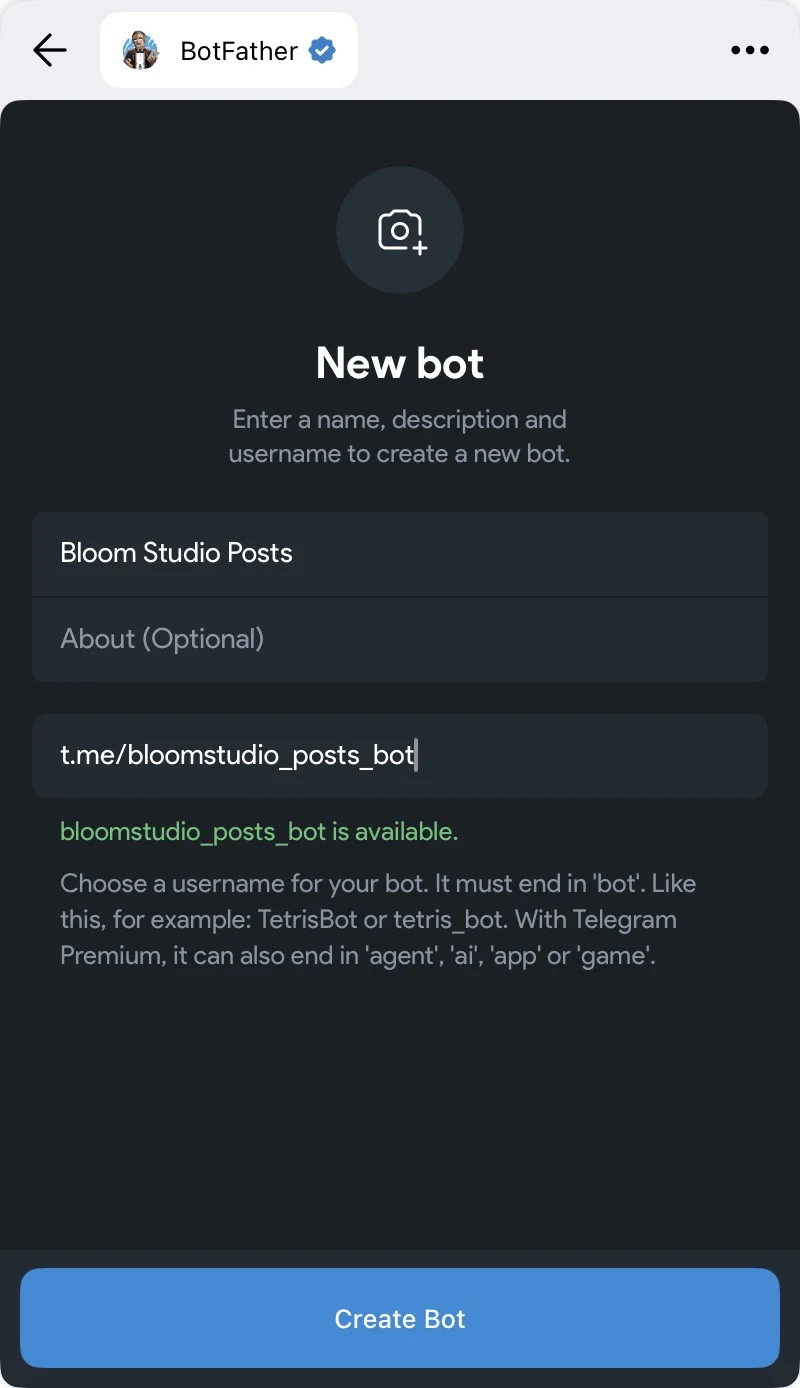
Enter a name and a username. The username has to end in bot. When the line under it turns green, press Create Bot.
3. Copy the token
Open your bot in the My bots list. The token is hidden behind dots; press Copy.
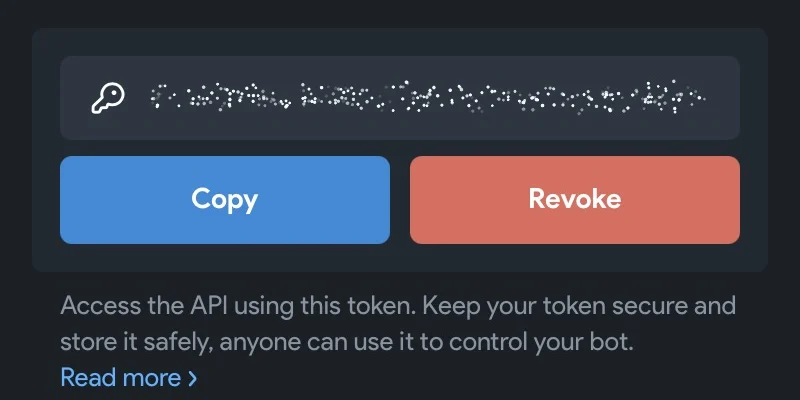
Anyone with the token can control the bot, so paste it only into PosteAhora. Revoke replaces it and disconnects every place that used the old one.
4. Make the bot an admin
Open your channel, click its name at the top, then Administrators.
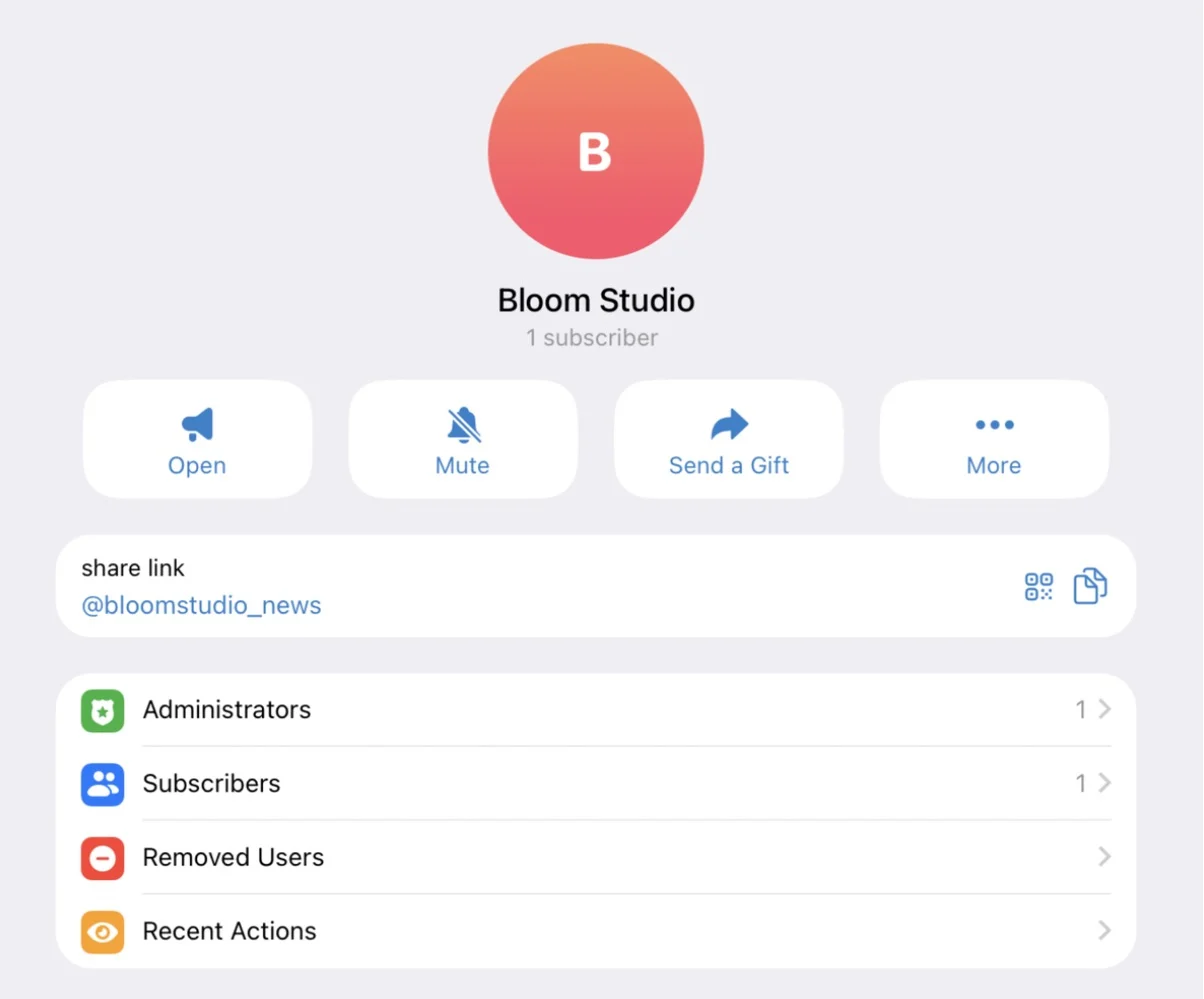
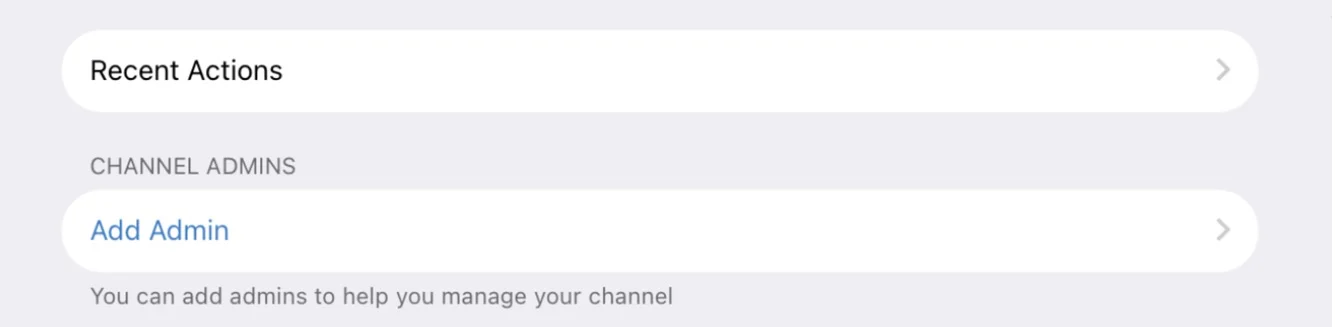
Press Add Admin and type the bot’s @username. The list stays empty until you type it.
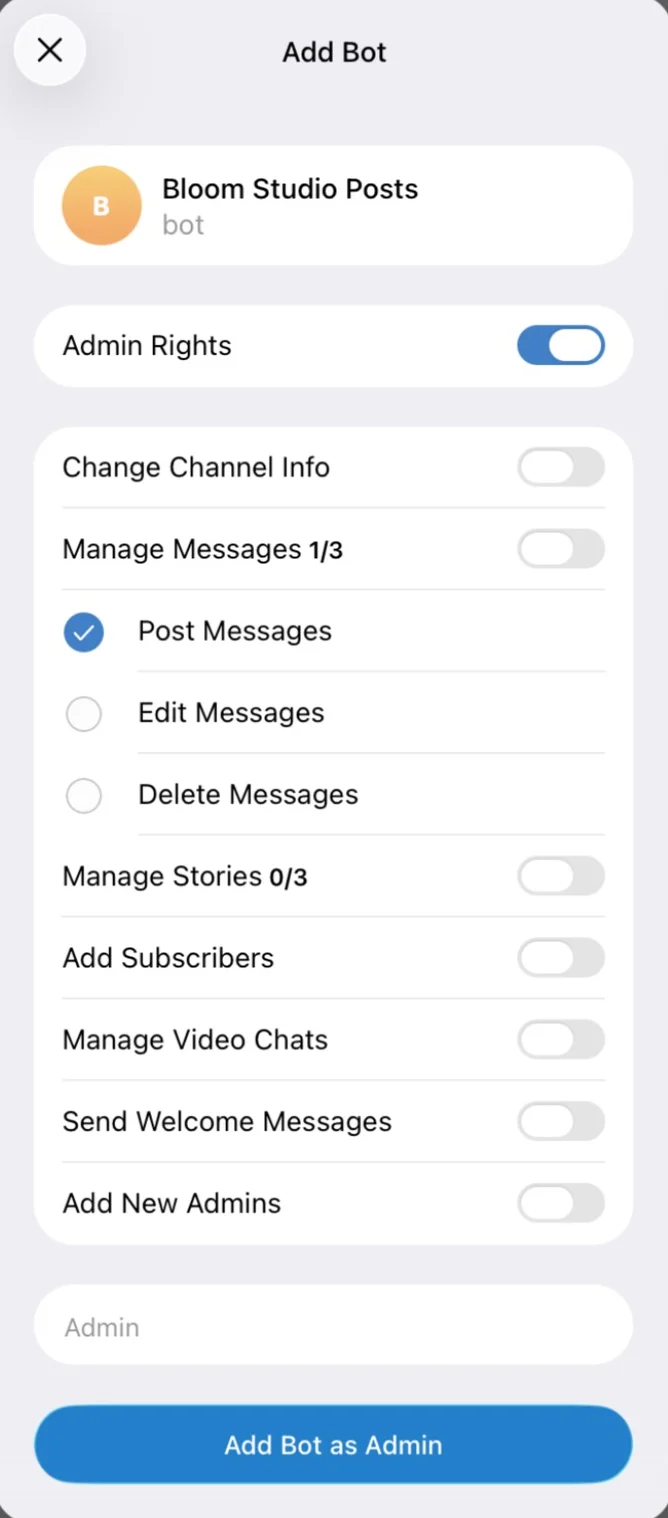
Choose the bot, expand Manage Messages and keep Post Messages on. PosteAhora needs nothing else, so the other rights can stay off. Press Add Bot as Admin and confirm.
Shortcut: open https://t.me/YOUR_BOT?startchannel&admin=post_messages with your bot’s username in place of YOUR_BOT. Telegram lists your channels and fills in the right for you.
In a group, add the bot under Administrators the same way. Groups have no Post Messages right; being an admin is enough. You don’t need to press Start in the bot’s own chat.
5. Find the @username
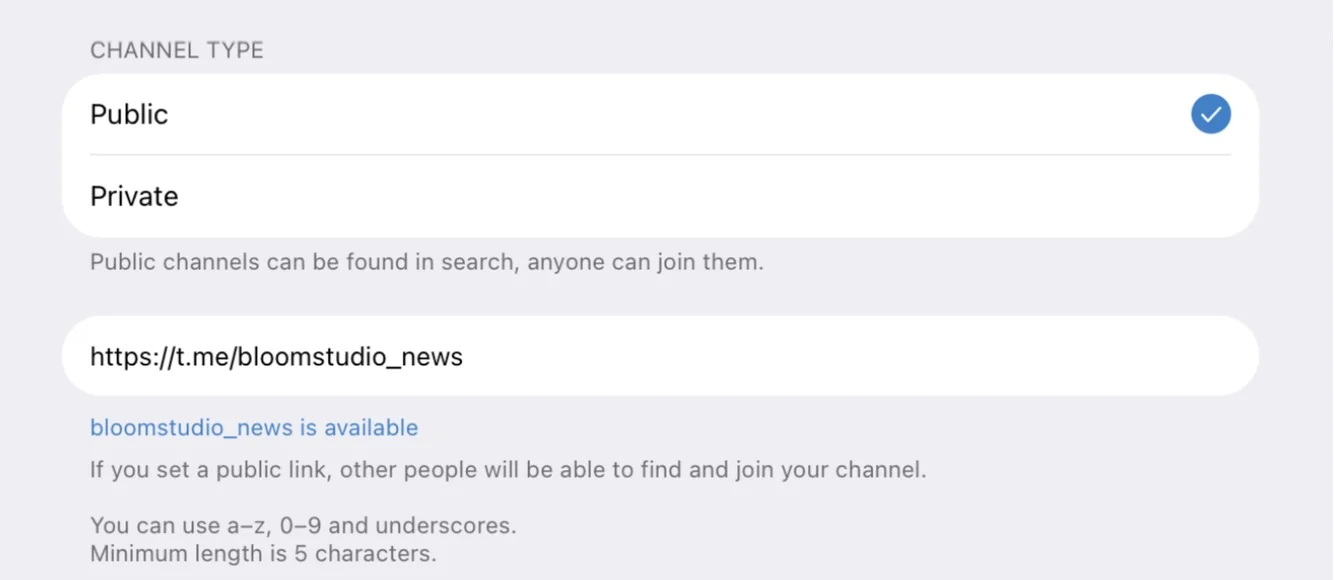
A public channel shows its @username under share link on the info page from step 4. If yours has no username, press Edit, open the channel type, choose Public and pick one.
To keep the channel private, see Private channels.
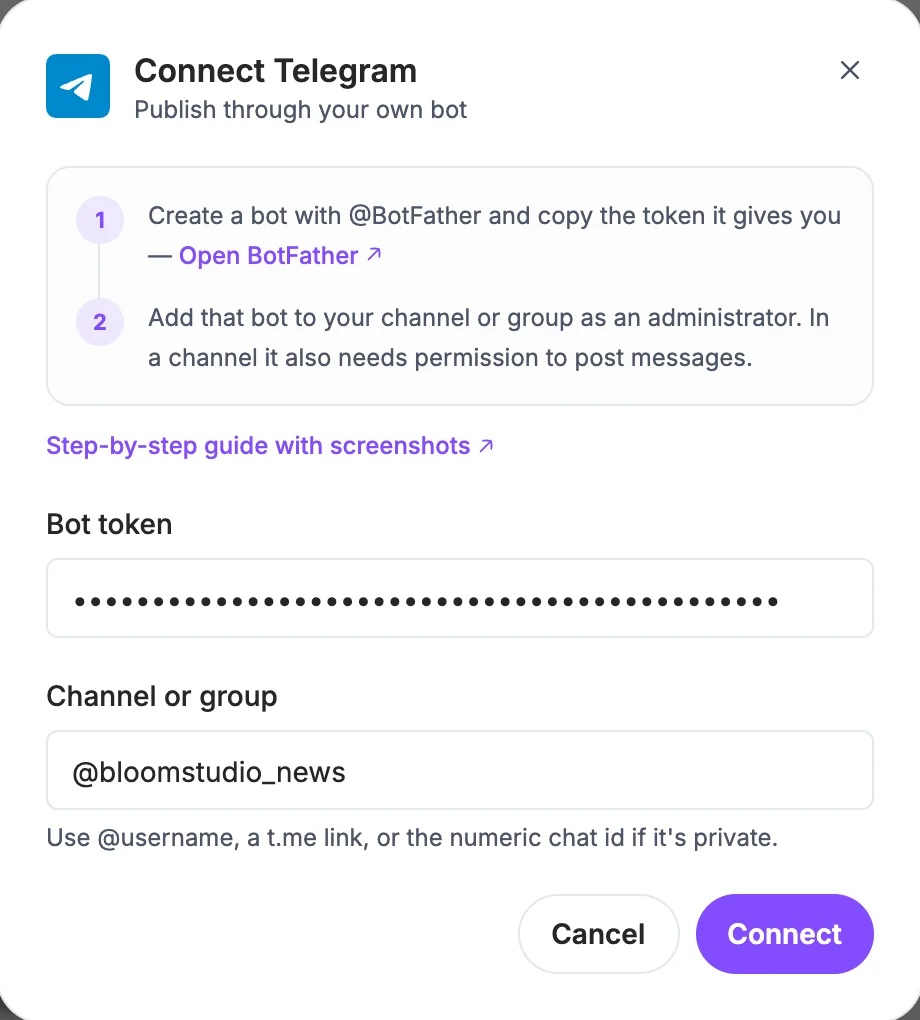
6. Connect in PosteAhora
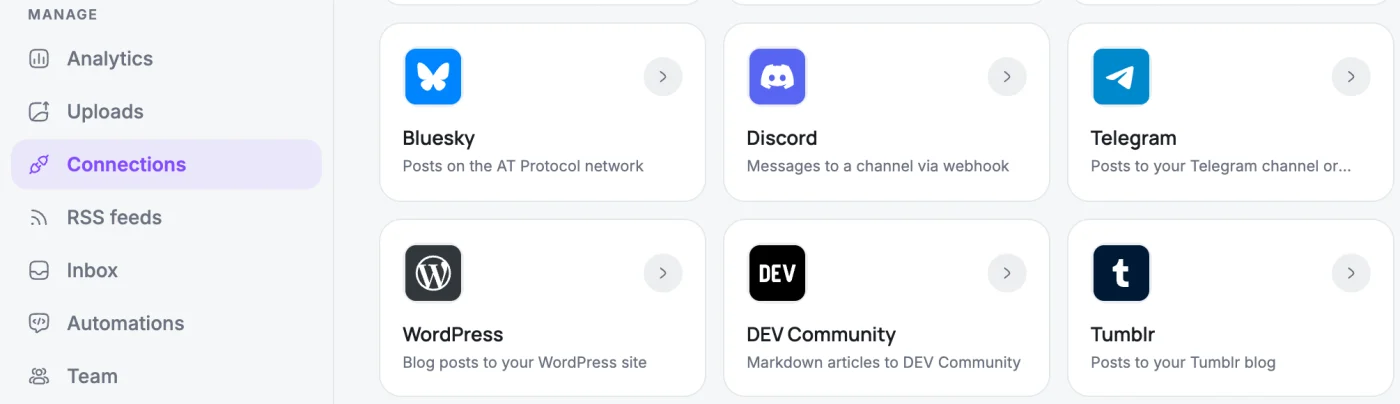
In PosteAhora, open Connections and choose Telegram.
Paste the token into Bot token and the channel’s @username into Channel or group, then press Connect.
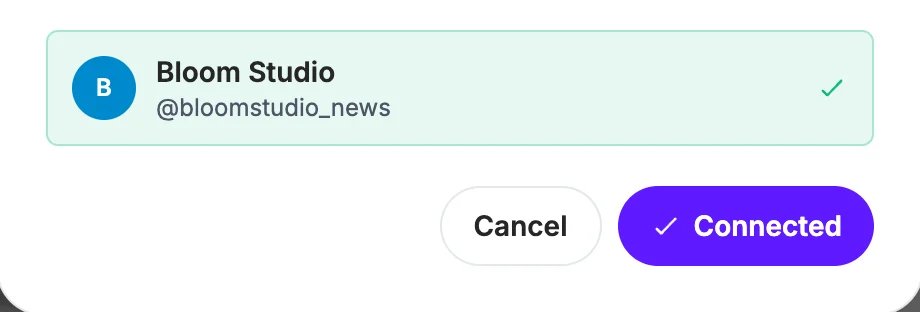
The window shows the name of your channel when it worked, and the channel appears in your accounts.
Private channels
A private channel has no @username, so use its numeric id. Copy the link of any post in the channel. It looks like t.me/c/1234567890/5. Take the middle number, put -100 in front of it and enter -1001234567890 as the channel. The bot has to be an admin first.
If you see an error
| Message | What to do |
|---|---|
| That bot token isn’t valid | Copy the token again with the Copy button in BotFather. If you pressed Revoke there, the old token no longer works. |
| That doesn’t look like a Telegram channel or group | Use @username or a t.me/username link. Invite links that start with t.me/+ don’t work here; see Private channels. |
| Telegram couldn’t find that chat, or your bot isn’t a member of it | The second field takes the channel’s @username, not the bot’s and not your own. If it is the channel’s, go back to step 4: the bot hasn’t been added yet. |
| That reference points to a private chat | The id belongs to a person. Enter a channel or a group. |
| Your bot isn’t an administrator of that chat | The bot is a plain member. Add it under Administrators, as in step 4. |
| Doesn’t have the “Post Messages” permission | Open Administrators, choose the bot, expand Manage Messages and turn on Post Messages. |
| Account limit reached for your plan | Disconnect an account you no longer use, or move to a larger plan. |
| No access to this workspace | Only workspace owners and admins can connect accounts. |
| Couldn’t reach Telegram | Telegram didn’t answer. Wait a minute and press Connect again. |
Still stuck? Open the chat in the corner and send us a screenshot of the message. Leave the token out of it.